Content
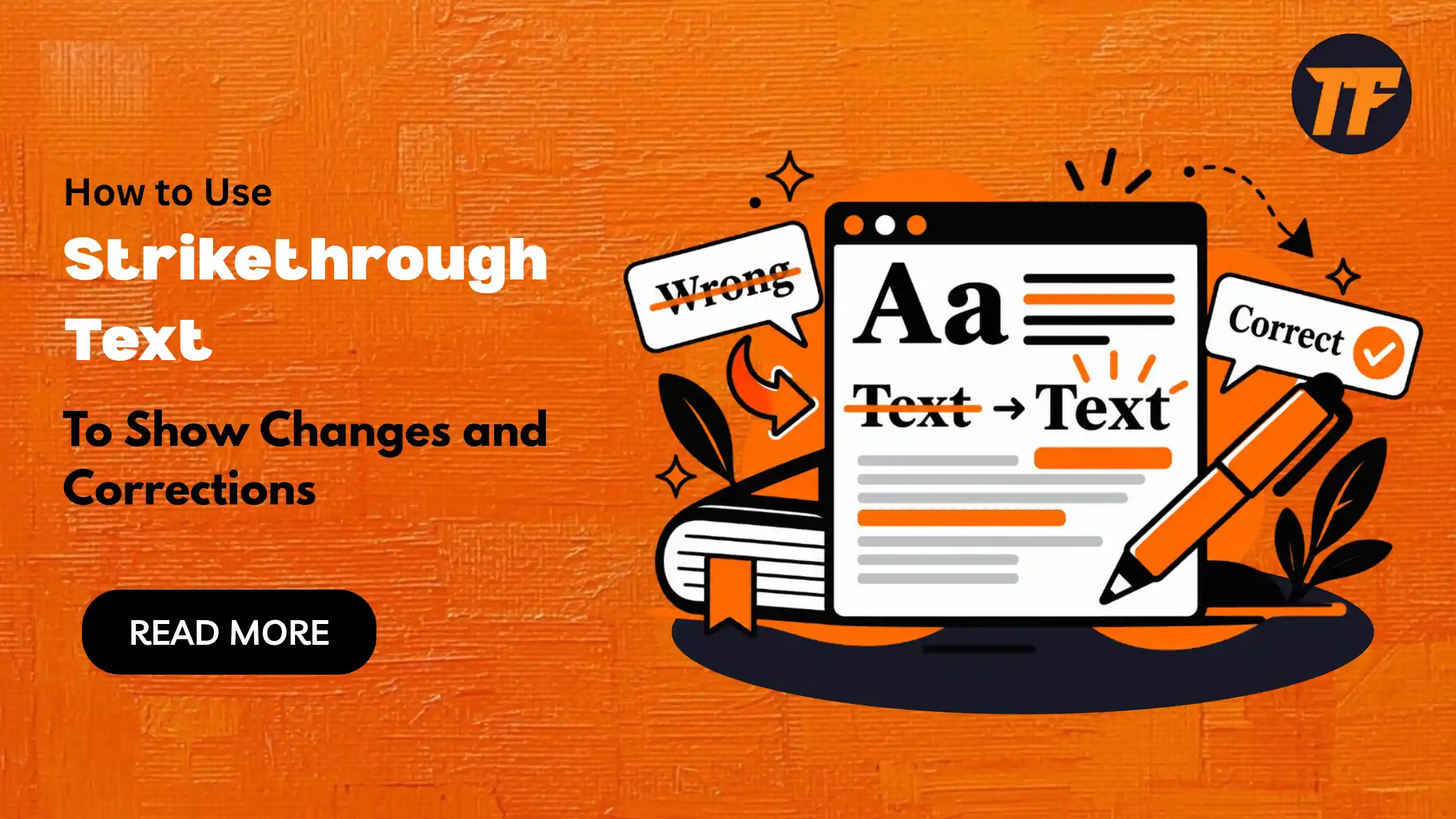
How to Use Strikethrough Text to Show Changes and Corrections
Sometimes, you need to correct a word, update a number, or change a piece of information without hiding what was written before. Strikethrough text makes this easy by keeping the original text visible while showing that it has been changed or removed.
It is useful for editing documents, marking completed tasks, correcting mistakes, and showing changes in casual writing.
However, using too much strikethrough can make a page harder to read. In this article, we will explain how to use strikethrough text for clear corrections, when it works best, and when you should use a different approach.
What is Strikethrough Text?
Strikethrough text is a word or phrase with a horizontal line through it. The text remains visible, but the line shows that it has been removed, replaced, or is no longer correct. For example, $50 $40 shows that the original price was $50 but has been changed to $40.
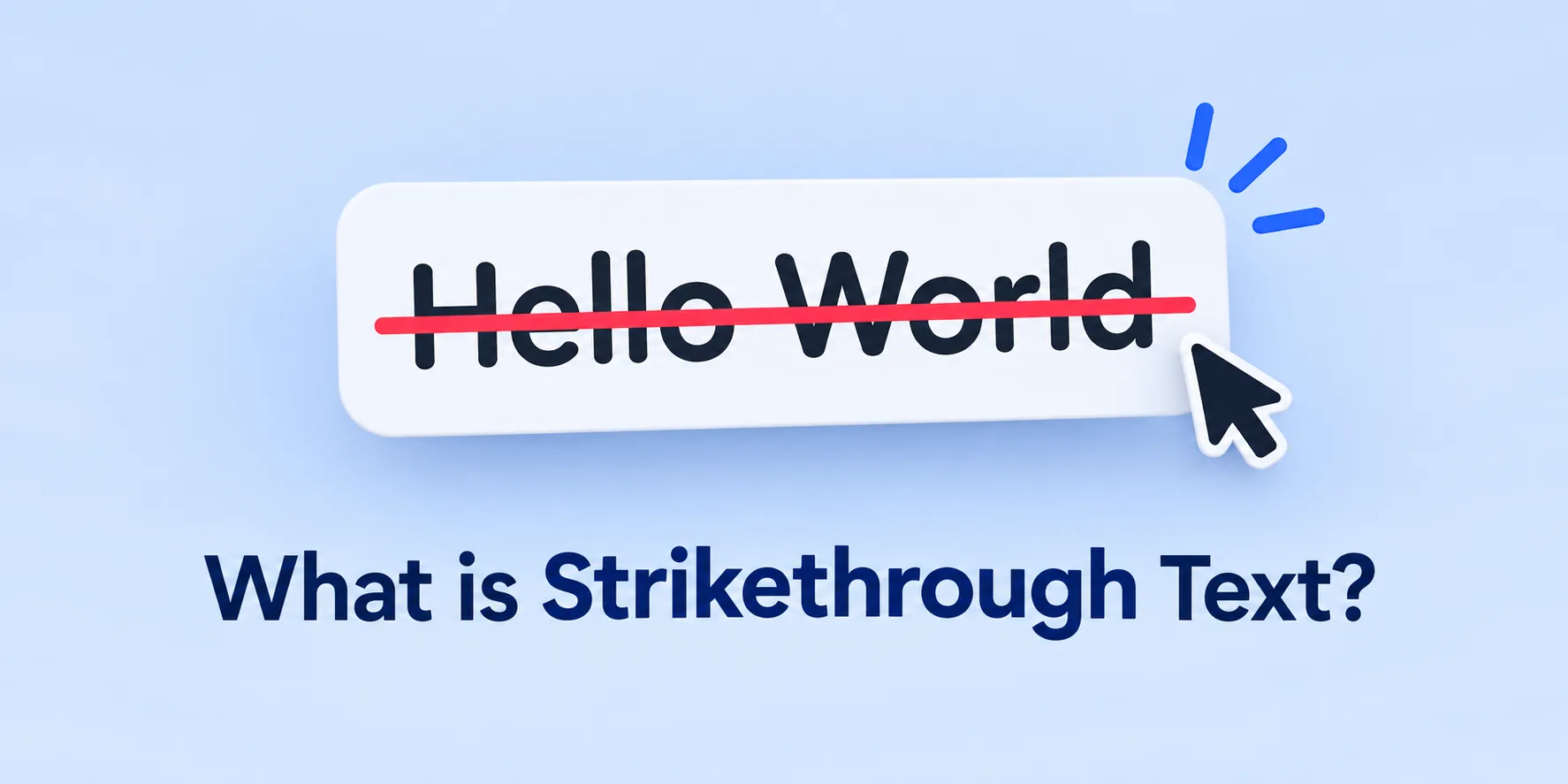
Strikethrough is useful when you want readers to see both the original and updated information. It is commonly used for corrections, edits, price changes, completed tasks, and casual writing.
If you are writing handwritten text, you can simply strike a line through the words. However, if you are typing on a digital device, you will have to use different shortcuts.
You can also use a Strikethrough text generator to get this text. This tool is designed to help you generate strikethrough text quickly so that you can copy and use it wherever you need.
How to Use Strikethrough Text to Show Changes and Corrections?
Crossing text out is easy, but using it clearly takes a few simple habits. Keep the original and corrected versions easy to compare, place the replacement close to the crossed-out text, and use the same format throughout.
Always Show What Replaced It
A struck-through word with nothing after it can leave the reader wondering what the correct information should be. When you are correcting a fact, number, date, or other important detail during fact-checking, place the replacement directly after the crossed-out version.
This lets readers see both the original information and the correction at a glance. It also prevents them from accidentally reading the crossed-out version as the current one. Keep the replacement clear and close enough that the connection is obvious
Weak: The price is $49.
Better: The price is
$49$35.
The rule is simple: cross out the old, then immediately write the new.
Keep the Order Old, Then New
Readers generally expect to see the original information first and the correction second. This order follows the way people naturally process an edit: first they see what was wrong, then they see what should replace it. This is also a common approach in proofreading, where changes need to be clear and easy to follow.
Putting the new version first can make the formatting harder to understand, especially when several corrections appear close together.
Keeping the same order throughout a document also makes your edits easier to scan and reduces the chance of confusing the original information with the correction.
Clear: The meeting starts at
4 PM5 PM.Confusing: The meeting starts at 5 PM
4 PM.
When showing a correction, use the pattern: old information first, followed immediately by the new information.
Cross Out Only the Part That Changed
If only one word, number, or short phrase needs correcting, strike through that specific part instead of marking the entire sentence. Narrow corrections make the change easier to identify and keep the surrounding information readable.
This becomes especially important in longer sentences, where crossing out everything can make the reader work harder to find the actual mistake.
Use the smallest amount of strikethrough needed to communicate the correction while leaving the rest of the sentence untouched.
Too wide:
The event starts at 5 PM and runs until 8 PM.The event starts at 6 PM and runs until 8 PM.Tighter: The event starts at
5 PM6 PM and runs until 8 PM
The tighter version lets the reader spot the actual difference quickly.
Don't Cross Out Too Much at Once
A few crossed-out words can make an edit easy to follow, but too much strikethrough can make the text harder to read. Try to limit it to the specific words or phrases that changed. This keeps the correction clear and helps improve readability. If most of the section has changed, rewrite it cleanly and add a short note explaining the major changes.
Light editing: The product was
released in Junereleased in July after a short delay.Without context: The launch is delayed by
one weekone month.
The goal is to show useful changes, not turn the page into a wall of crossed-out text.
Add a Short Note When the Reason Isn't Obvious
Some corrections are self-explanatory, such as fixing a spelling mistake or changing one word. Others may leave readers wondering why the information changed. If you are correcting a price, date, claim, decision, or other important detail, a short explanation can provide useful context.
Keep the note brief and place it close to the correction. You do not need to explain every edit. Only add a reason when knowing what caused the change helps the reader understand it.
Without context: The launch is delayed by
one weekone month.With context: The launch is delayed by
one weekone month (supplier issue).
One short note is enough. There's no need to justify every single edit. If you want to make the note more visible, make sure to bold it. You can use a bold text generator to make your note stand out. With this tool, all you have to do is enter your text and and it will convert it into bolded version that you can copy.
Be Consistent Within the Same Piece
Pick one way of marking changes and stick with it through the whole document. Mixing crossed-out corrections with silent, unmarked edits makes readers question the whole piece, not just the one change.
Make Sure the Line Actually Travels
Not every place keeps formatting intact. Text can get copied, pasted, or moved somewhere the line disappears, and the correction disappears with it. If the change matters, check how it actually looks wherever it's going to be read.
Clear It Out Before the Final Version
Crossed-out text belongs in the working draft, not the finished piece. Before anything goes out, decide what stays and remove the rest. Leftover strikethrough in a final version is the single most common way this goes wrong.
When You Should Use Strikethrough Text
Correcting something public. If people may have already read or acted on the wrong information, showing the fix is more honest than quietly swapping it out.
Showing an update. Old prices, old dates, old details that changed rather than were ever wrong.
Sharing edits with someone. So they can see exactly what you removed, not just the tidied-up result.
Tracking progress. Finished items in a list, while keeping the full scope of the list visible.
Adding a light touch. A crossed-out aside that lands as a joke in casual writing.
Use it whenever seeing both versions actually helps the reader.
When You Should Not Use Strikethrough Text
When the old version adds nothing. If nobody benefits from seeing it, just delete it. Struck text with no purpose is clutter.
When almost everything changed. A heavy rewrite is clearer as a clean version with a short note about what's different.
In anything formal or final. Contracts, reports, applications, and published work should read clean, not marked up.
As a substitute for an explanation. A line through a wrong claim isn't the same as addressing it properly. Sometimes the situation calls for a sentence, not formatting.
Where the formatting won't survive. If the text is heading somewhere that strips styling, write the change out in words instead.
Final Thoughts
Strikethrough text is a simple way to show changes while keeping the original information visible. It works best when you cross out only the part that changed and place the correct version right after it.
Keep the same format throughout your document so readers can follow each edit easily. For larger changes, a clean rewrite may be easier to read. Used properly, strikethrough keeps corrections clear without making the text confusing.
People Also Ask
What does crossed-out text mean?
It usually means the text is no longer correct, no longer applies, or has been completed. The words stay visible so the reader can see exactly what changed.
Should I cross out a mistake or just delete it?
Cross it out when the reader benefits from seeing the original version. Delete it when the old version adds nothing useful to the reader.
Where should I write the correction?
Directly after the crossed-out text, with the old version first and the new version second. This order reads naturally and avoids confusion.
Can I use strikethrough in professional writing?
It works well in drafts, reviews, and shared documents. In finished, formal work, it's better to clean it up so the final version reads smoothly.
Does crossed-out text still count as part of the sentence?
Not really. Readers treat it as replaced content, which is exactly why the correction needs to sit right next to it.

Admin
Admin is a professional and creative specializing in the latest stylish font styles for social media and brand promotion. With a passion for modern typography and digital trends, Admin helps users create eye-catching text that stands out online.